Image Fill
Fill Figma designs with product images by name and control quantity, containers, scale, and alignment.
Image Fill finds product layers on the Assets page and inserts the matching assets into your selected containers.
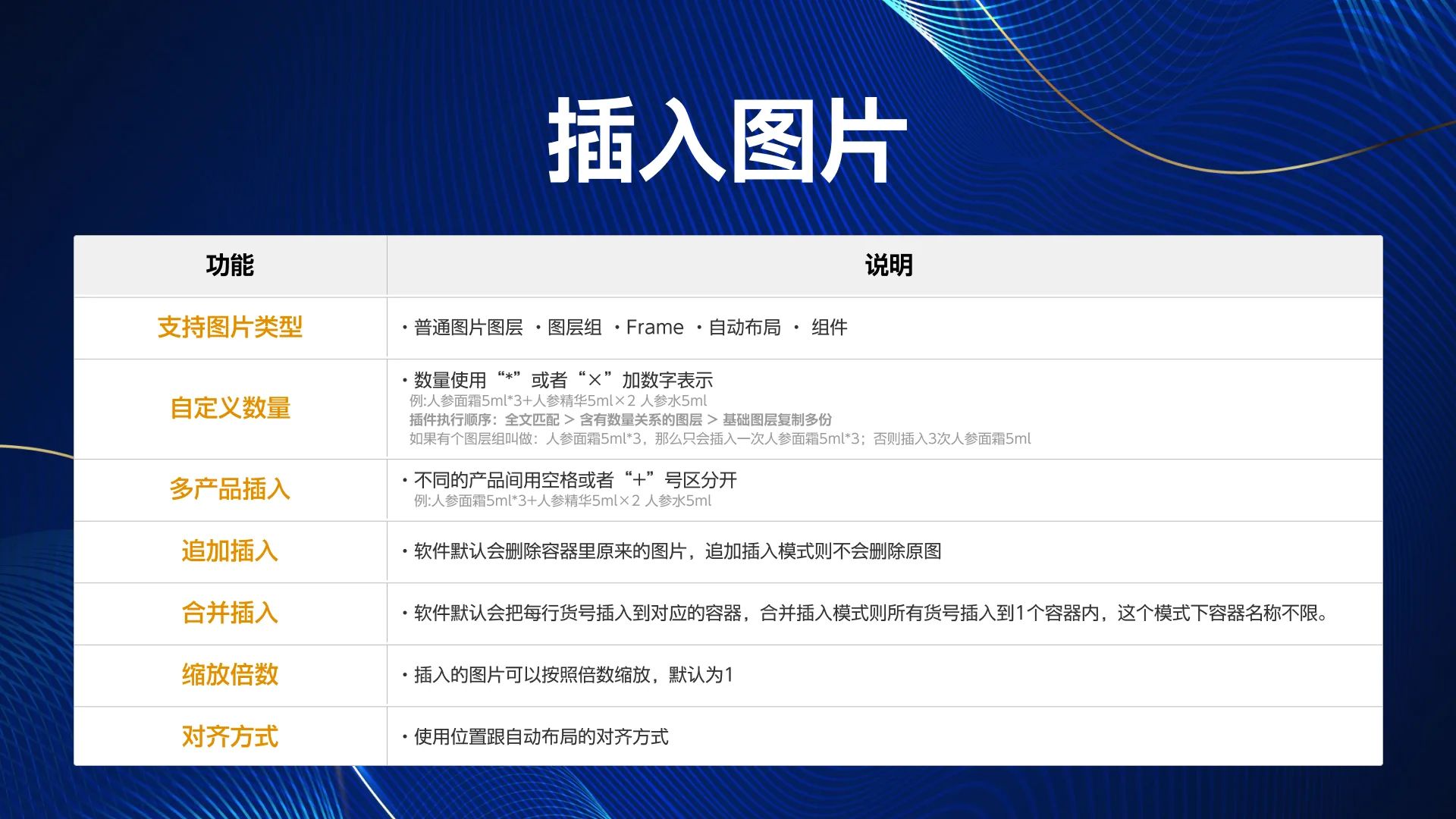
Supported layer types
ProdFill works with image layers, groups, frames, Auto Layout containers, and components. Select the destination layers before running the fill.
Insert multiple products into one container
Separate products with spaces or a plus sign (+). For example:
cream 5ml*3 + serum 5ml×2 toner 5mlSet product quantities
Add * or × followed by a number to the product name. ProdFill resolves quantities in this order:
- Match the complete layer name.
- Match an asset layer that already represents the quantity combination.
- If no combination exists, duplicate the base asset to the requested quantity.
If an asset named cream 5ml*3 exists, ProdFill inserts it once. Otherwise, it inserts three copies of cream 5ml.
Append
By default, ProdFill removes existing images from a container. Enable Append to keep the existing content and add the new images after it.
Merge
Normally, each input row fills its corresponding container. Enable Merge to place all products into one container without requiring a specific container name.
Container name
The container name identifies the destination for inserted images. Use the same name for the destination frame or Auto Layout layer.
Scale
Set the scale applied to inserted assets. The default is 1; for example, 0.8 inserts the asset at 80% of its original size.
Alignment
Image placement follows the Figma Auto Layout alignment of the destination container. Configure the container alignment first when the images must stay at a fixed position.