Frequently Asked Questions
Troubleshoot image positioning, asset matching, and Auto Layout behavior in ProdFill.
Use these checks to resolve common template and batch-fill issues. Confirm your selection, layer names, and asset names before running ProdFill again.
Images do not stay in position
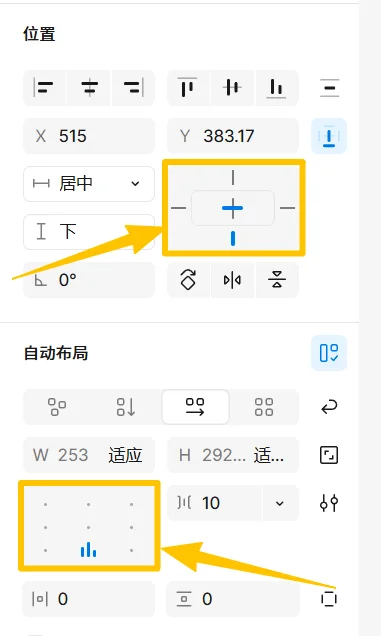
Inserted image positions follow the destination container's Figma Auto Layout settings. Configure alignment, fixed dimensions, and padding on the container before filling it.
ProdFill cannot find an asset
- Confirm that the current file contains a page named
Assets. - Make sure product identifiers, Excel values, and asset layer names match exactly.
- Confirm that destination nodes are inside the current selection.
- Check for extra spaces, full-width punctuation, or inconsistent specification text.
Excel data is not filled
Use an .xlsx or .xls file. Check whether headers are in the first row or first column and select the matching fill direction. Advanced Mode prefixes must use the documented spelling.
Get additional help
Record the reproduction steps, Figma layer structure, Excel headers, and exact error message before contacting support. Replace sensitive business data with representative examples.